Send Payments
Simplify your payment process and offer a seamless payment experience to customers using the Send Payments feature on WhatsApp.
Share secure payment links and receive payments directly through the app — fast, easy, and convenient.
Understanding Send Payments
The Send Payments feature allows you to share WhatsApp payment links directly with your customers.
With this functionality, businesses can securely receive payments from customers right within WhatsApp — making the checkout experience faster and more convenient.
Before You Proceed:
Make sure you have connected WhatsApp Payments in your Mark360 account before using this card.
Send WhatsApp Payments Essentials
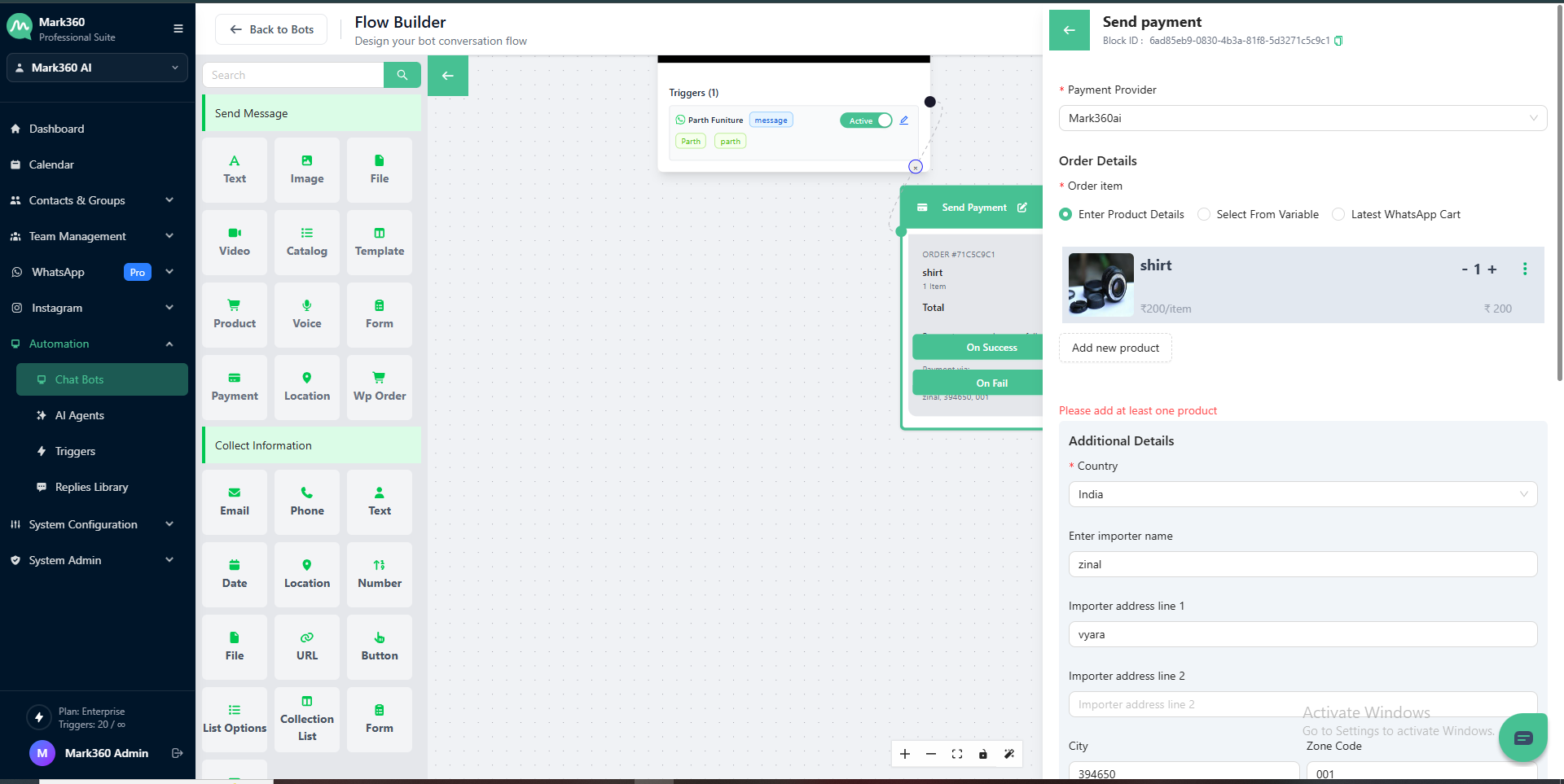
When using the Send WhatsApp Payments Card, users are required to provide the following details:
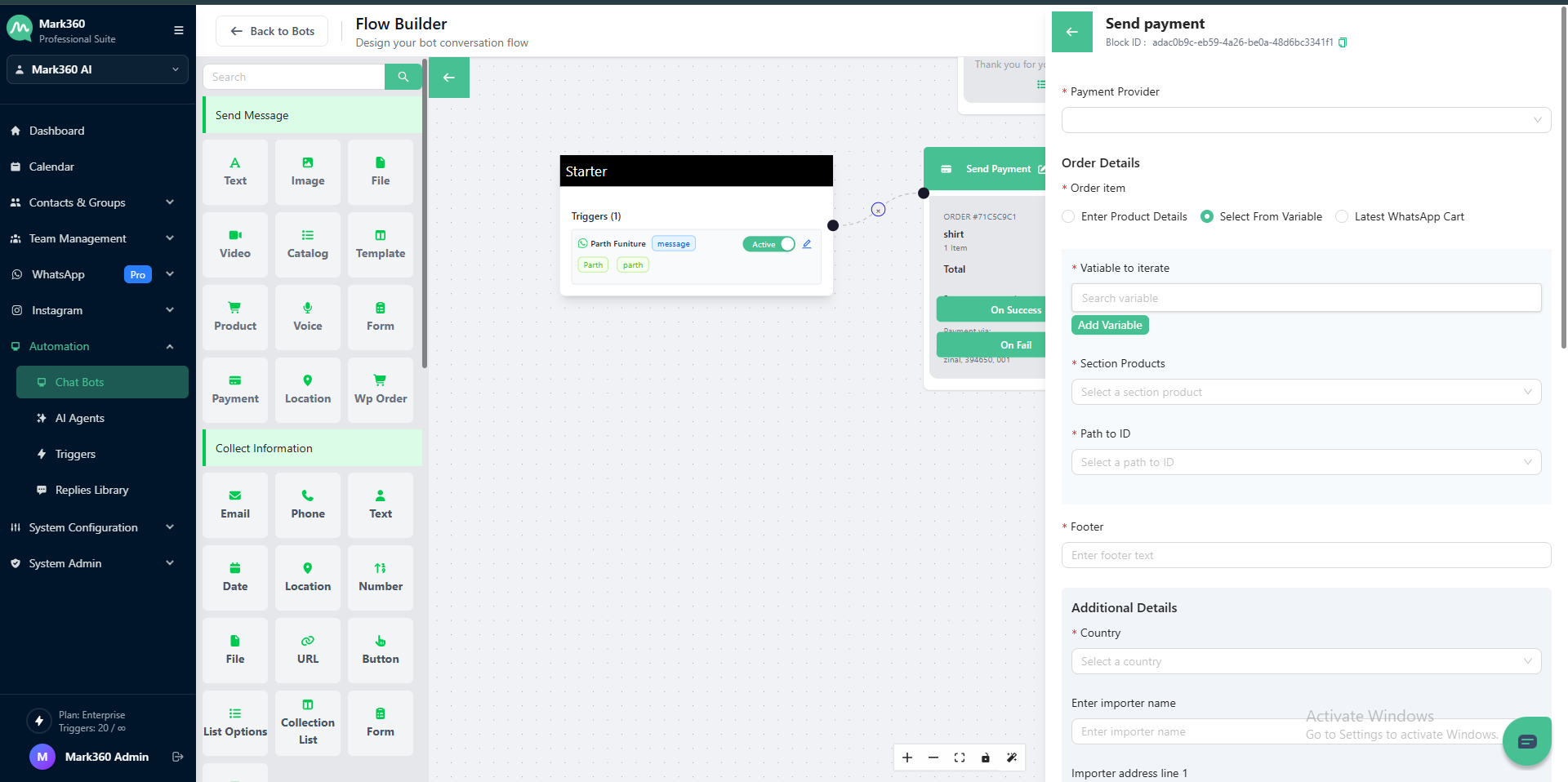
Payment Provider
Choose your preferred payment provider — UPI VPA ID or Razorpay — to receive payments directly on WhatsApp.
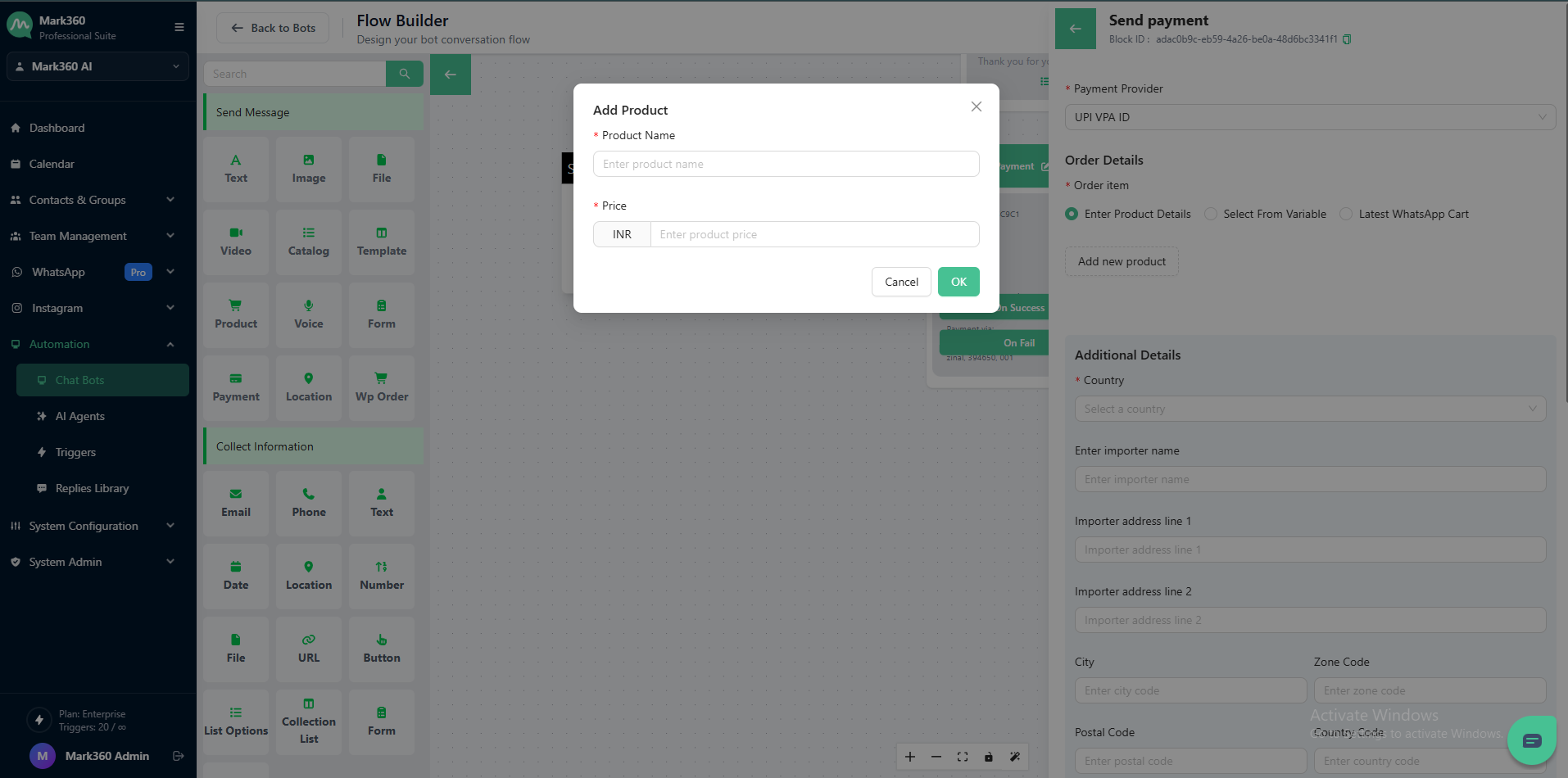
Order Details
Add order details manually or use variables to include product or service information in the payment request.
Header Image
Upload an optional header image to visually represent the payment request.
Body
Enter a short message or description related to the payment request.
This can include order information, payment purpose, or instructions for the customer.
Footer
Optionally include footer text to display additional information such as contact details, policies, or notes.
Advanced Settings
Configure additional payment parameters to enhance your request.
Tax
- Tax Amount: Enter the applicable tax amount.
- Tax Description: Provide a short description of the tax.
Shipping
- Shipping Amount: Specify the shipping charges.
- Shipping Description: Describe the shipping details or terms.
Discount
- Discount Amount: Enter the discount amount offered.
- Discount Description: Provide a description for the discount.
Advance Option
Add custom JSON data for advanced configurations.
⚠️ Note: Razorpay supports a maximum of 10 keys in the JSON input.
Card Usage
To send a payment request, follow these steps:
-
Select Payment Provider
Choose your preferred provider, such as UPI VPA ID or Razorpay, to process payments. -
Enter Order Details
Provide key order information, including items, country of origin, importer information, and address details. -
Add Optional Elements
Upload a header image and include body and footer text to personalize your payment request. -
Configure Advanced Options
Set up tax, shipping, and discount details as needed to complete your payment configuration. -
Submit the Payment Request
Once all fields are filled, click Send to share the payment link with your customer via WhatsApp.